
Chart
for Visual C++ MFC v24.3.0
Codejock Chart for Visual C++ MFC adds customizable 2D and 3D data visualization to Windows applications. Configure series, axes, labels, legends, palettes, and appearance settings across a broad selection of chart styles.
Chart is included in Toolkit Pro for Visual C++ MFC
Chart Features
Choose from bar, point, line, pie, area, radar and polar, financial, Gantt, funnel, pyramid, and 3D chart styles for business, scientific, and analytical data. The Toolkit Pro evaluation for Visual C++ MFC includes Chart so you can explore the available styles and features.
3D Charts
Render familiar chart families in configurable 3D diagrams with camera positioning, rotation, and style-specific geometry.
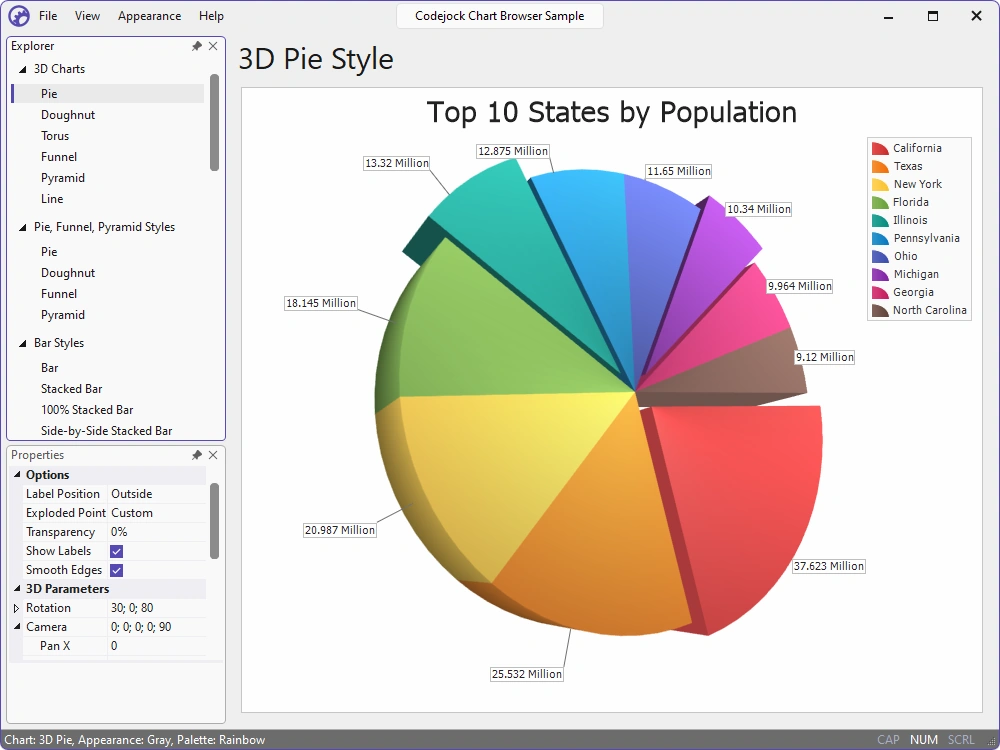
- 3D Pie — Show value-sized slices in a rotatable pie for part-to-whole comparisons.
- 3D Doughnut and Torus — Present proportional values in rings with configurable holes, body thickness, and rotation.
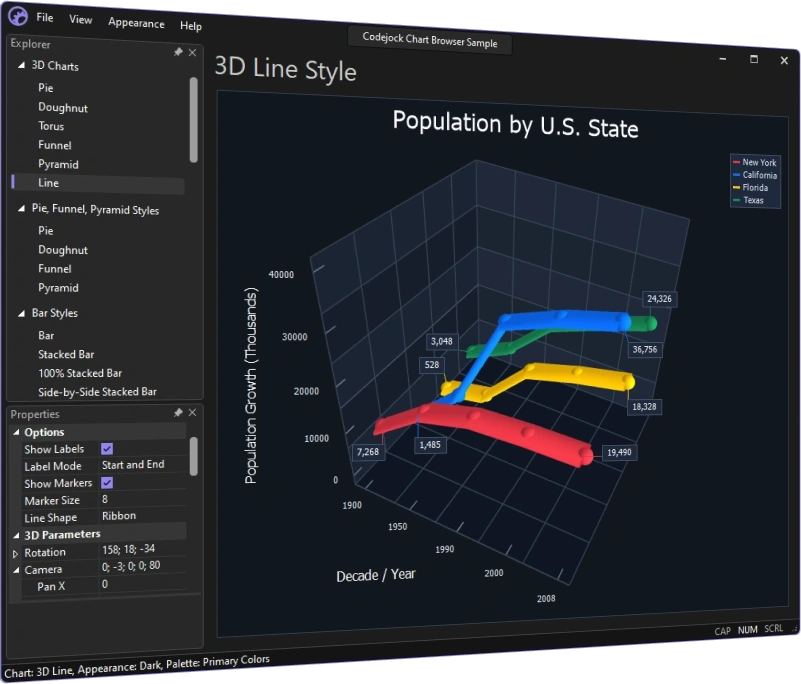
- 3D Line — Plot series with tube or ribbon lines, markers, and camera rotation.
- 3D Funnel — Show staged values as tapered segments with configurable bases and spacing.
- 3D Pyramid — Show ranked values as stacked pyramid segments sized by value.
Pie, Doughnut, Funnel, and Pyramid Charts
Show proportions, value progression, stages, and ordered comparisons with compact, presentation-ready chart styles.
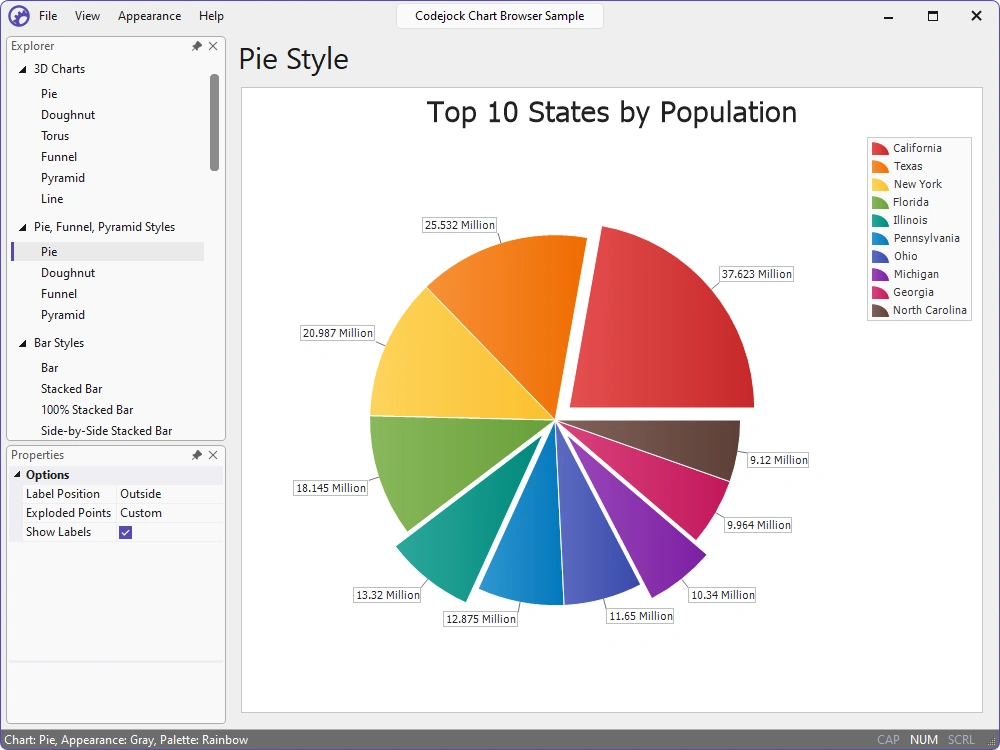
- Pie Charts — Show each value as a proportional slice for clear part-to-whole comparisons.
- Doughnut Charts — Use a configurable center hole and exploded slices to emphasize selected values.
- Funnel Charts — Use tapered, stacked segments to show process stages or compare values in sequence.
- Pyramid Charts — Show ranked or proportional values as stacked segments sized by value.
Bar, Range, and Gantt Charts
Compare categories, totals, durations, and project schedules with standard, stacked, range, and timeline-oriented bars.
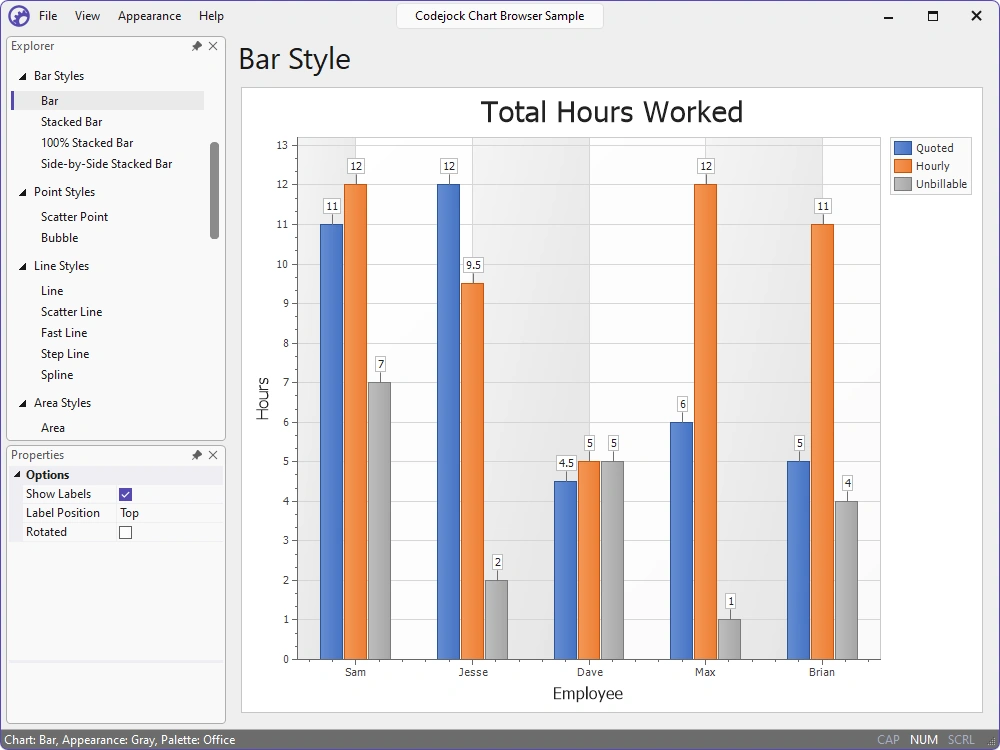
- Bar Charts — Compare category values with proportional rectangular bars.
- Stacked and 100% Stacked Bars — Compare totals, components, and percentage composition.
- Side-by-Side Stacks — Compare related stacked groups within each category.
- Combination Charts — Combine bar, line, point, and area series in one diagram.
- Range Bars — Use bars spanning start and end values to compare durations and ranges.
- Gantt Charts — Map tasks across a timeline with planned, completed, and progress indicators.
Point, Bubble, and Line Charts
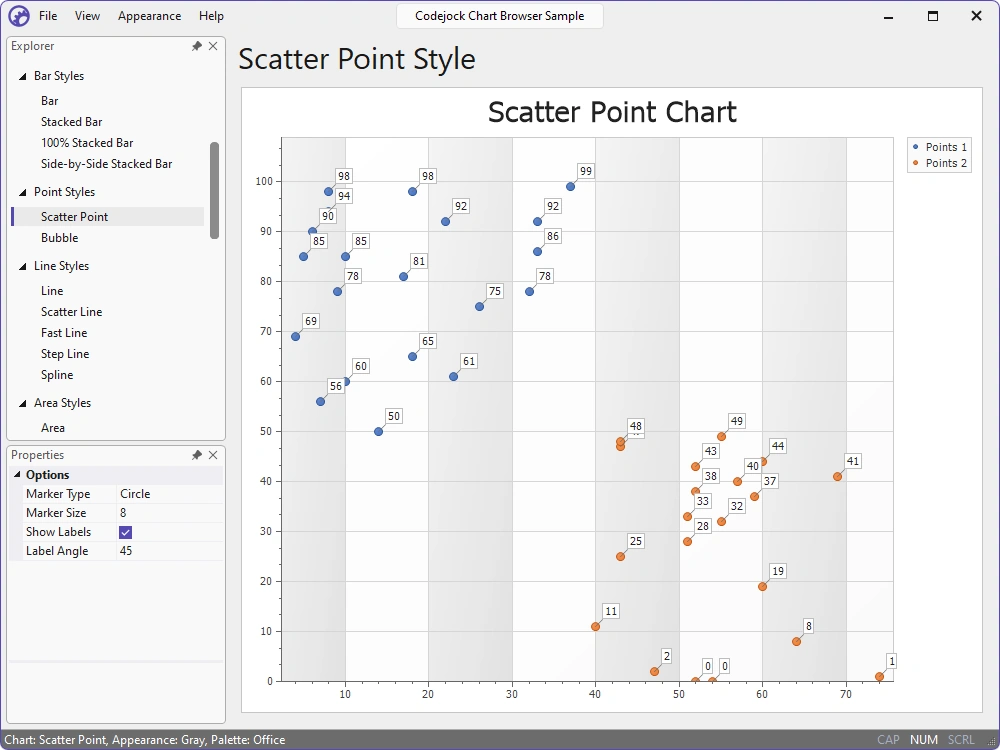
Explore numeric relationships and track change across ordered or continuous values with point, bubble, and multiple line styles.
- Scatter Points — Reveal distributions, correlations, clusters, and outliers from numeric x/y pairs.
- Bubble Charts — Add a third numeric variable through bubble size.
- Line and Scatter Line — Connect ordered values or x/y points to expose paths and trends.
- Fast Line — Render large, ordered data sets efficiently.
- Step and Spline Lines — Emphasize discrete changes or smooth gradual trends.
Area Charts
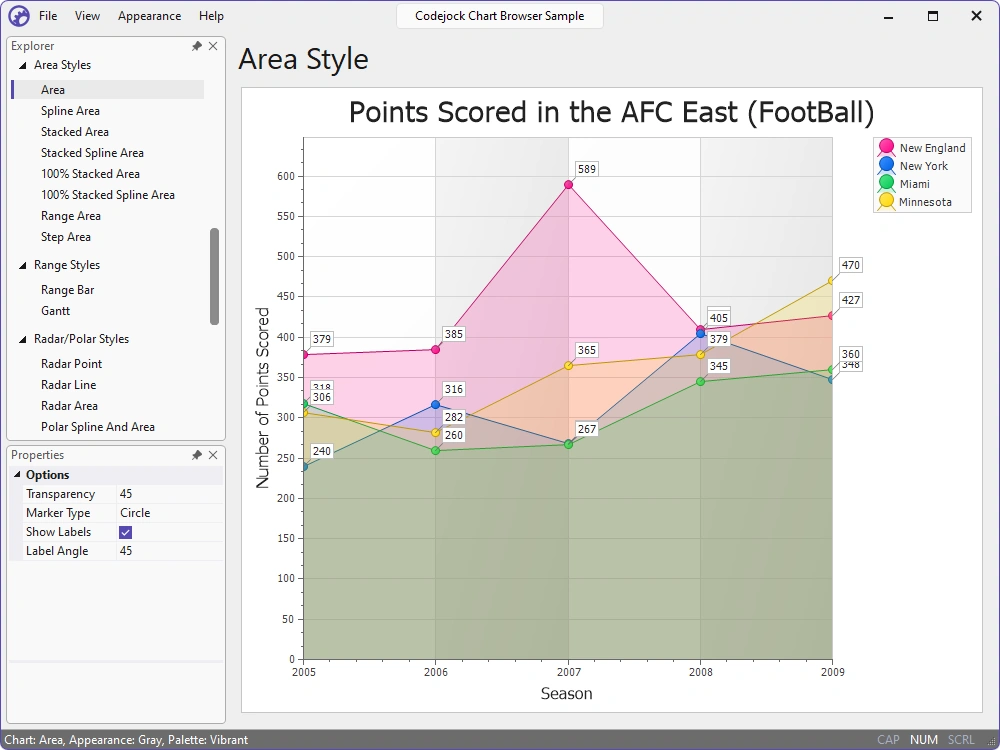
Reveal trends, magnitudes, cumulative totals, percentage composition, and value ranges with eight area chart styles.
- Area and Spline Area — Fill standard or smooth series to emphasize magnitude and trends.
- Stacked Area — Show individual contributions and cumulative totals.
- 100% Stacked Area — Normalize stacks to compare relative contributions.
- Stacked Spline Area — Combine cumulative stacking with smooth boundaries.
- 100% Stacked Spline Area — Compare changing proportions with normalized smooth curves.
- Range and Step Area — Present upper/lower bands or discrete value intervals.
Radar, Polar, and Financial Charts
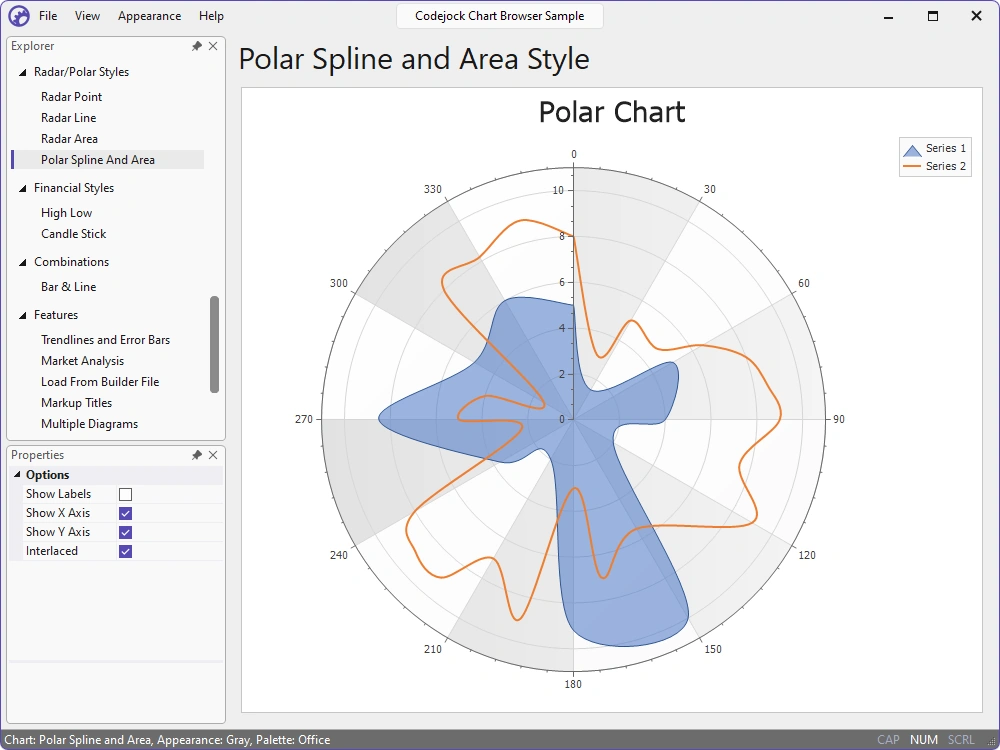
Compare multivariable profiles across radial axes and present open, high, low, and close market data for trading and technical analysis.
- Radar Point — Plot unconnected markers on radial axes for individual measurements.
- Radar Line and Area — Connect or fill radial values to compare multivariable profiles.
- Polar Spline and Area — Plot angular and radial values with smooth lines and filled regions.
- Candlestick Charts — Show open-to-close bodies with high-to-low wicks for each interval.
- High-Low Stock Charts — Show price spans with open and close ticks.
Advanced Analysis and Presentation
Add analytical overlays, reusable definitions, multiple diagrams and axes, rich titles, interactive navigation, specialized scales, and virtual data points.
- Trendlines and Error Bars — Add calculated overlays with configurable direction and end-cap options.
- Market Analysis — Combine candlesticks, volume, moving averages, RSI, and coordinated panels.
- Reusable Definitions and Rich Titles — Load Chart Builder XML and format titles with markup.
- Multiple Diagrams and Secondary Axes — Separate related series or assign independent ranges.
- Interactive Zoom and Scroll — Explore dense data with zooming, panning, markers, and labels.
- Date, Time, and Logarithmic Scales — Configure specialized units, formats, labels, and ranges.
- Virtual Data Points — Generate calculated series values on demand through callbacks.
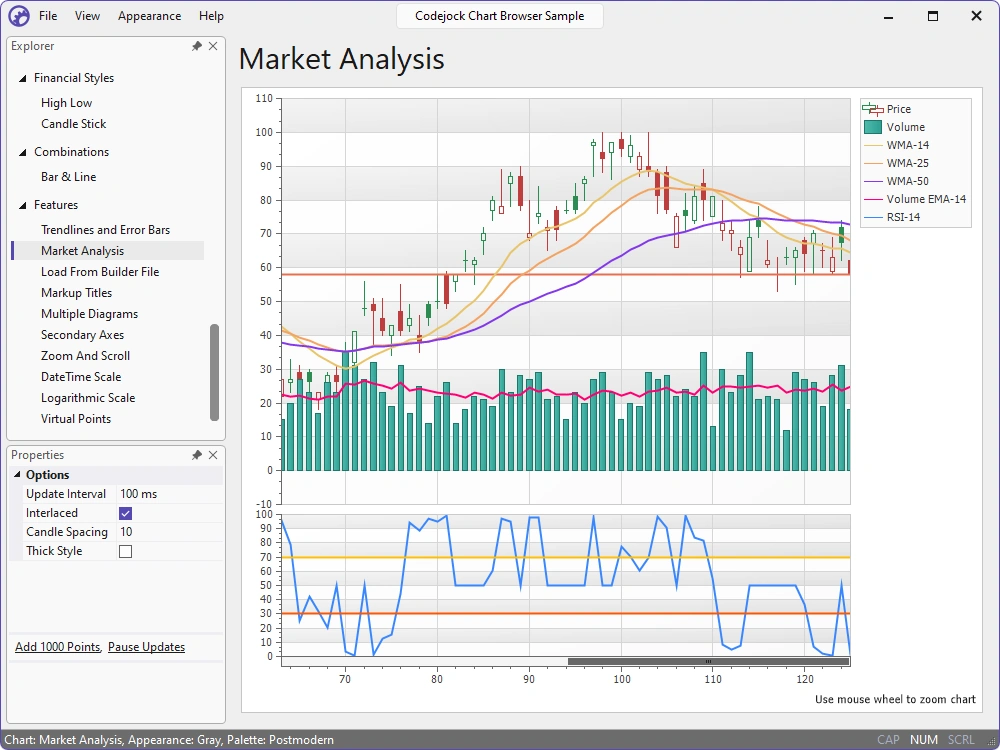
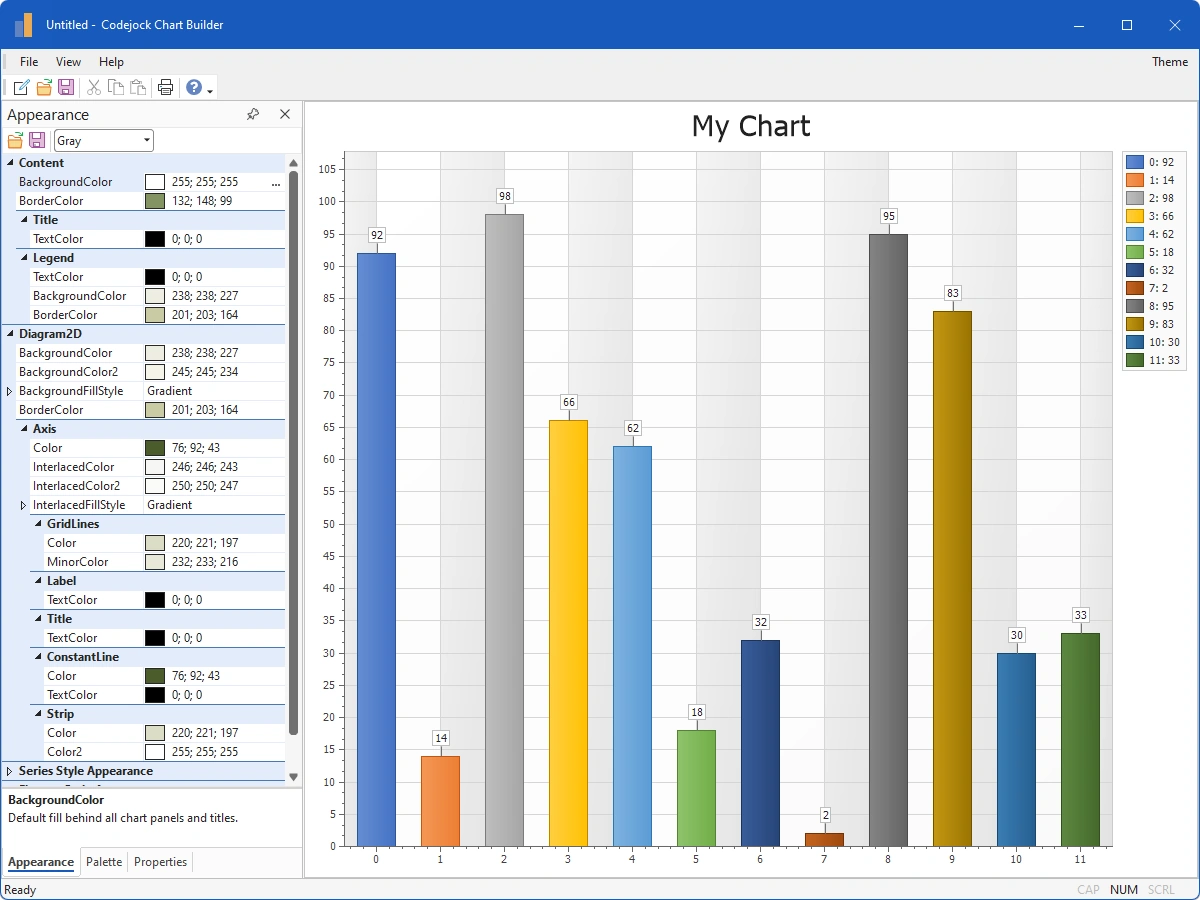
Chart Builder and Output Tools
Design and configure charts visually, save reusable definitions, preview or print the result, and export charts in common formats.
- Visual Chart Builder — Configure content, palettes, series, and diagrams through live controls.
- Printing and Print Preview — Preview charts at page scale and print through standard Windows settings.
- Image Export — Export charts as PNG, GIF, JPEG, or BMP for reports and documentation.
- XML Import and Export — Save and reopen reusable chart definitions as readable XML.
Broad compatibility across Visual Studio, Windows desktop, and Windows Server releases — from modern environments to legacy deployments.
Development environments
- Visual Studio 2026 (VC++ 18.0)
- Visual Studio 2022 (VC++ 17.0)
- Visual Studio 2019 (VC++ 16.0)
- Visual Studio 2017 (VC++ 15.0)
- Visual Studio 2015 (VC++ 14.0)
- Visual Studio 2013 (VC++ 12.0)
- Visual Studio 2012 (VC++ 11.0)
- Visual Studio 2010 (VC++ 10.0)
- Visual Studio 2008 (VC++ 9.0)
- Visual Studio 2005 (VC++ 8.0)
- Visual Studio .NET 2003 (VC++ 7.1)
- Visual Studio .NET 2002 (VC++ 7.0)
- Visual Studio 6.0 (VC++ 6.0)
Client operating systems
- Windows 11
- Windows 10
- Windows 8.1
- Windows 8
- Windows 7
- Windows Vista
- Windows XP
- Windows Me
- Windows 2000
- Windows 98 SE
- Windows 98
- Windows 95
Server environments
- Windows Server 2025
- Windows Server 2022
- Windows Server 2019
- Windows Server 2016
- Windows Server 2012 R2
- Windows Server 2012
- Windows Server 2008 R2
- Windows Server 2008
- Windows Server 2003 R2
- Windows Server 2003
- Windows 2000
- Windows NT 4.0