
Docking Pane
for Visual C++ MFC v24.3.0
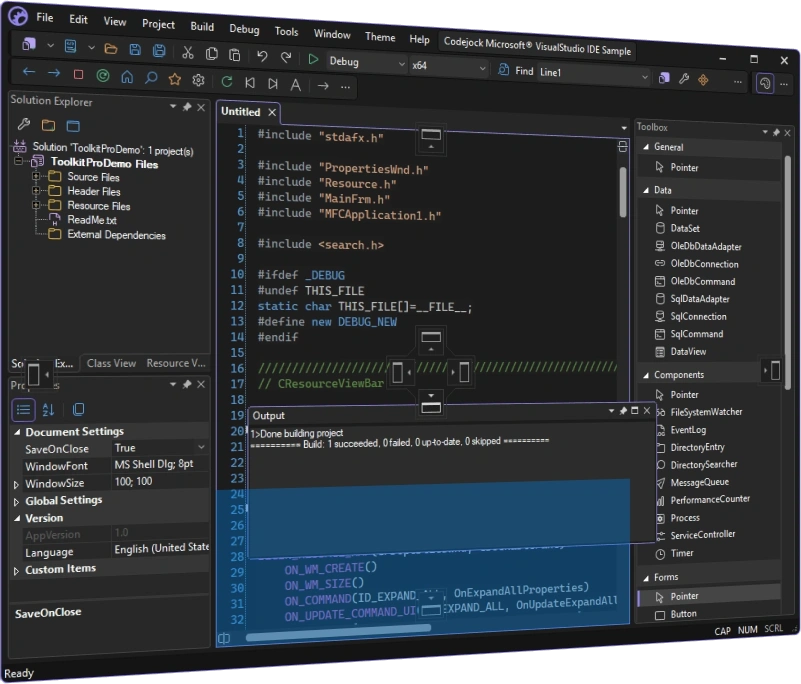
Docking Pane for Visual C++ MFC allows you to create fully customizable docking panes with a professional and modern interface. Windows developers can build an advanced layout management UI with tear-off tabs and auto-hide windows for a more manageable application workspace.
Docking Pane is included in Toolkit Pro for Visual C++ MFC
Docking Pane Features
Codejock Docking Pane for Visual C++ MFC includes Office and Visual Studio themes, tear-off tabs, Visio-style docking, sliding auto-hide panes, pinnable panes, drag-and-drop positioning, cascading panes, and layout persistence.
Docking Pane is included with the Toolkit Pro for Visual C++ MFC evaluation.
Docking Pane Themes
Apply current Visual Studio, Office, Windows, and specialized styling to docking panes, tabs, splitters, and floating frames.
- Visual Studio Themes — Choose Visual Studio 2026 Dark or Light styling. Dark includes Default, Cool Slate, Juicy Plum, Moonlight Glow, Mystical Forest, and Spicy Red. Light includes Default, Bubblegum, Cool Breeze, Icy Mint, Mango Paradise, Silky Pink, and Sunny Day. Earlier themes include Visual Studio 2022 and Visual Studio 2015-2019.
- Office Themes — Use Office 2024 Black, White, Colorful, or Dark Gray with Access, Excel, OneNote, Outlook, PowerPoint, and Word accents, plus Office 2019, 2016, and 2013 styling.
- Windows Themes — Choose Windows 11 Dark or Light styling and native Windows 10 docking surfaces.
- Specialized Styles — Use Visio, Outlook, Explorer, or grippered pane presentation for application-specific workspaces.
- Custom Paint Manager — Extend pane, panel, tab, color-set, and splitter drawing for branded interfaces.
Pane Layout and Docking
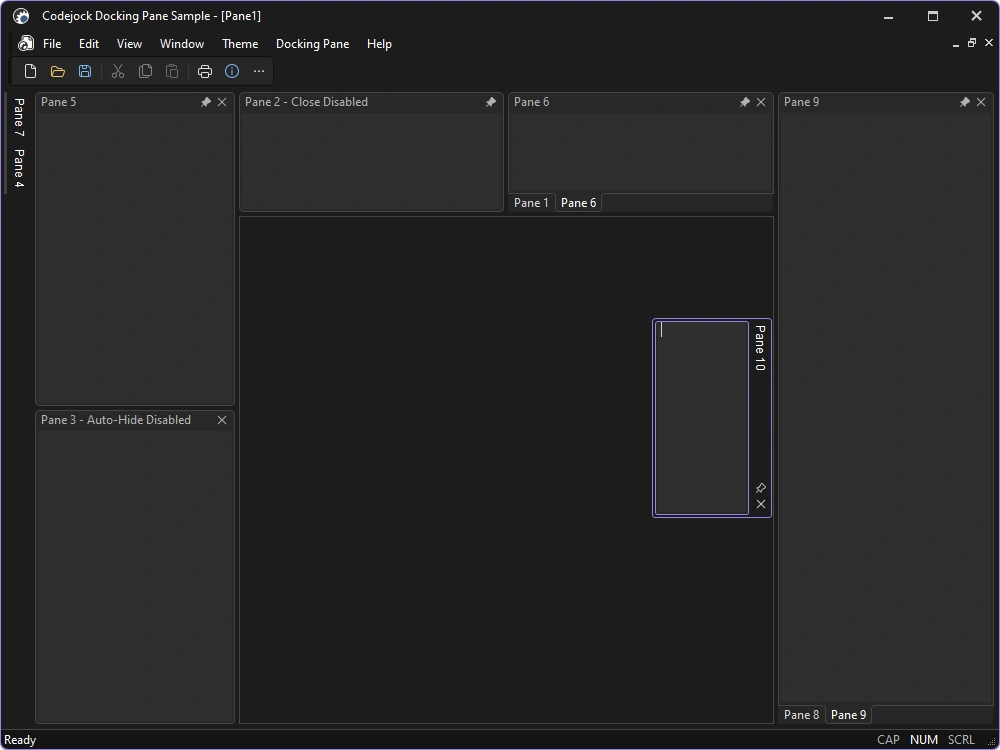
Build flexible tool-window workspaces with nested groups, floating panes, visual guides, and detachable content.
- Nested Pane Groups — Arrange related tool windows in nested horizontal and vertical groups.
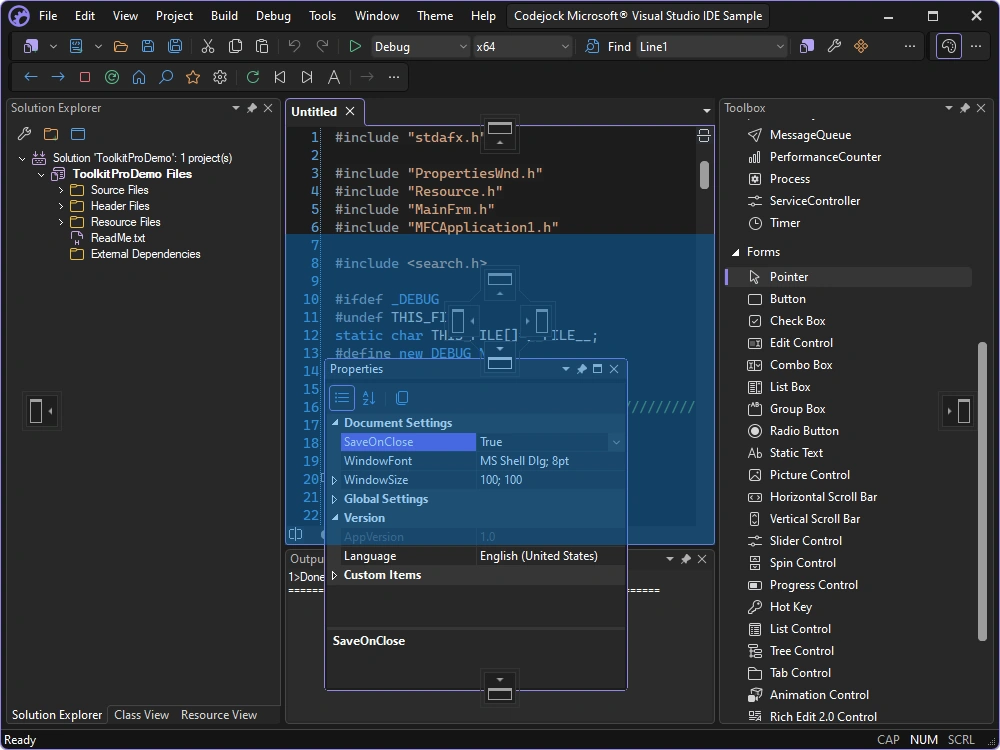
- Visual Studio-Style Docking — Guide pane placement with familiar docking indicators and previews.
- Detachable Tab Windows — Move tabbed panes into independent floating frames and dock them again.
- Float and Dock — Float panes freely or attach them to supported workspace edges.
- Drag-and-Drop Positioning — Rearrange panes and groups through direct drag-and-drop interaction.
- Hidden Client Area — Use the full frame as a docking workspace when no document client is needed.
- Caption Commands — Add menus and application actions to docking-pane captions.
- Splitter Feedback — Preview and apply pane resizing with configurable splitter tracking.
Compact Tool Windows
Keep tools available without occupying permanent workspace through sliding, pinnable auto-hide panels.
- Sliding Auto-Hide Panes — Reveal hidden tool windows from edge tabs and slide them away when finished.
- Pinnable Panes — Switch panes between docked and auto-hidden states from the caption.
- Auto-Hide Timing — Configure activation and dismissal delays for sliding panes.
- Floating Auto-Hide Panes — Allow supported floating panes to participate in auto-hide behavior.
- Auto-Hide Panel — Organize hidden panes in edge-aligned tab panels.
- Pane State Management — Control visibility, docking, floating, pinning, activation, and grouping.
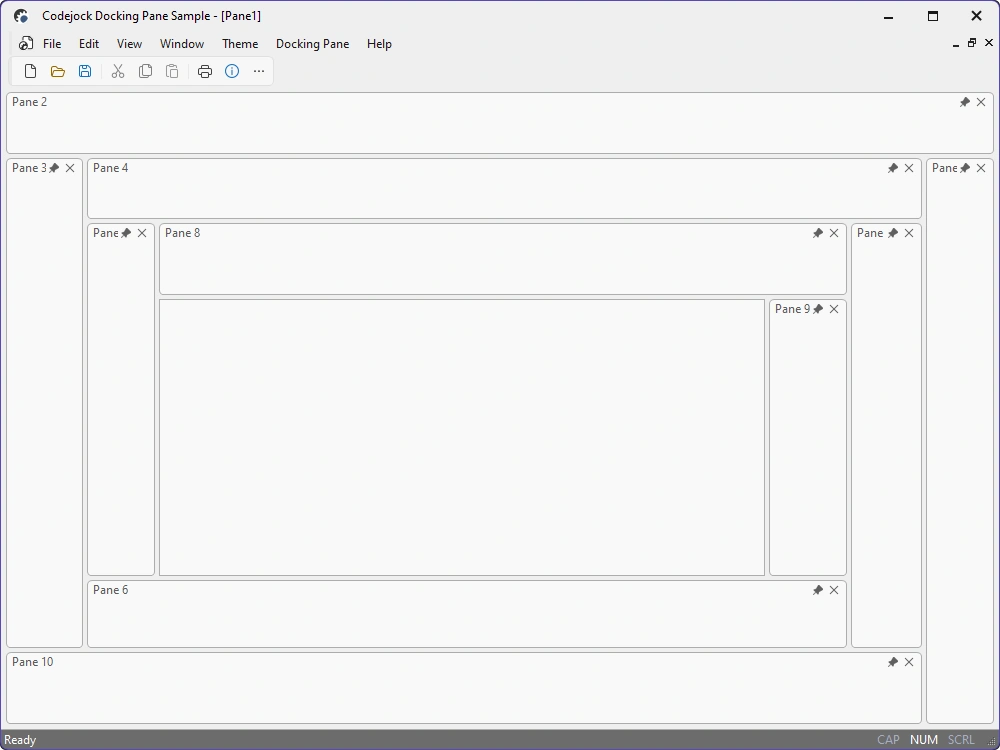
Docking Pane Presentation
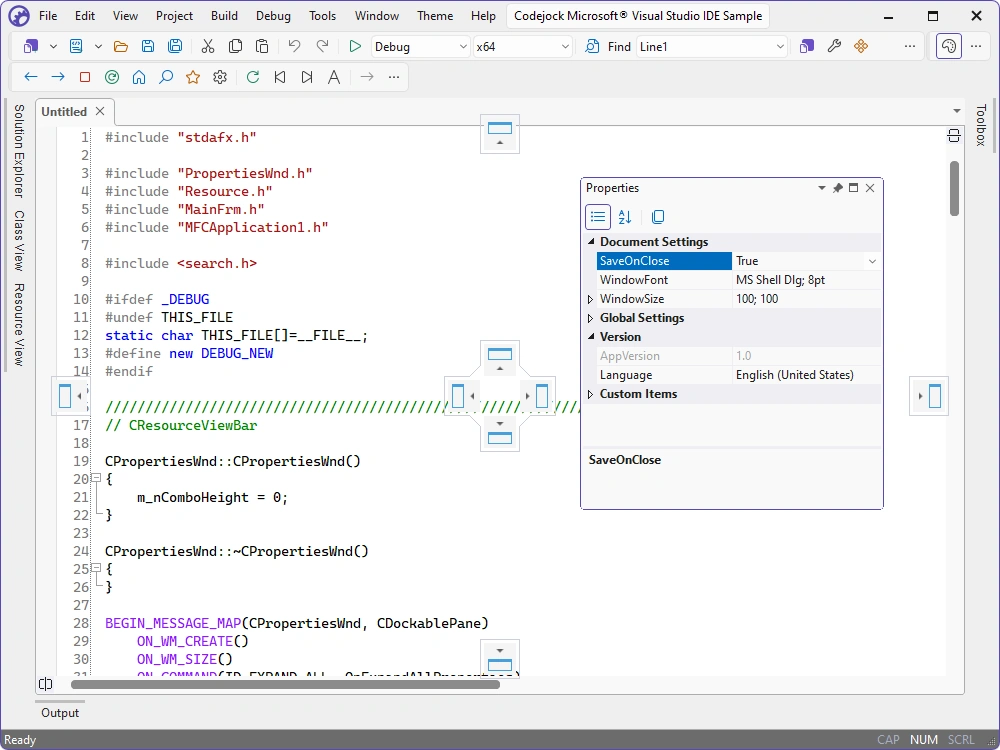
Configure icons, positions, layouts, colors, borders, and interaction states for pane tabs.
- Position and Layout — Place pane tabs on any edge with single-row, multi-row, or rotated layouts.
- Tab Icons — Show standard or custom icons beside pane captions.
- Tab Appearance — Choose supported tab shapes, colors, borders, margins, and hot tracking.
- Selected-Tab Emphasis — Highlight the active pane with bold text and configurable visual states.
- Layout Persistence — Save and restore pane layout through registry or custom storage.
- Action Notifications — Respond to docking, activation, closing, and layout events before or after changes.
Broad compatibility across Visual Studio, Windows desktop, and Windows Server releases — from modern environments to legacy deployments.
Development environments
- Visual Studio 2026 (VC++ 18.0)
- Visual Studio 2022 (VC++ 17.0)
- Visual Studio 2019 (VC++ 16.0)
- Visual Studio 2017 (VC++ 15.0)
- Visual Studio 2015 (VC++ 14.0)
- Visual Studio 2013 (VC++ 12.0)
- Visual Studio 2012 (VC++ 11.0)
- Visual Studio 2010 (VC++ 10.0)
- Visual Studio 2008 (VC++ 9.0)
- Visual Studio 2005 (VC++ 8.0)
- Visual Studio .NET 2003 (VC++ 7.1)
- Visual Studio .NET 2002 (VC++ 7.0)
- Visual Studio 6.0 (VC++ 6.0)
Client operating systems
- Windows 11
- Windows 10
- Windows 8.1
- Windows 8
- Windows 7
- Windows Vista
- Windows XP
- Windows Me
- Windows 2000
- Windows 98 SE
- Windows 98
- Windows 95
Server environments
- Windows Server 2025
- Windows Server 2022
- Windows Server 2019
- Windows Server 2016
- Windows Server 2012 R2
- Windows Server 2012
- Windows Server 2008 R2
- Windows Server 2008
- Windows Server 2003 R2
- Windows Server 2003
- Windows 2000
- Windows NT 4.0